Welcome to liefOS Tips, Guides and Documentations
Getting started with liefOS' features and other documentations
To get started press the "Read a Document" button on the top navigation bar, or "Read Others" from the options below.
This web page contains different types of documentations about liefOS.
For beginners, We recommended to read the "Common Questions" and "Just started" documents so that you will know how to use liefOS efficiently and get your questions answered.
Encountered an error? Go to "liefOS Errors" document or press the "Read about liefOS errors" button.
Last updated: February 27, 2026 - Still in active development.
Common Questions
Get your questions asked here!
Notice: This document is coming soon.
Explaining Errors
Look for the errors you've encountered and know its solution.
- Display Error
This error can be instantly resolved, don't give up that easily!
Solution: Enter fullscreen mode (F11 or Fn + F11 in Windows/Linux/ChromeOS, Cmd + Ctrl + F for macOS)
liefOS' display is tied to the actual device screen resolution, while this can be removed in some techy ways; It will result in liefOS looking stretched out or compressed to fit in the browser window. liefOS (specifically SystemX2) is intended for devices with a screen resolution of 1024x768 or higher (resulting in need of occupying the whole screen), as liefOS is not intended for small resolutions; normal for a desktop intended web OS.
- Could not start liefOS properly
Solution: Reload the liefOS Web Client
This error can be caused by two reasons. First reason, liefOS might already be running in another tab; liefOS does not allow multiple instances of the web client to be running at the same time. Second reason, liefOS might not be closed or shutdown properly, it might think a session is still running. A reload should fix this error.
- Touch Input
No solution for SystemX2, use MobileEnvironment.
This error indicates that your device has a touch screen, which liefOS SystemX2 doesn't officially support. We recommend you use the liefOS MobileEnvironment. By default liefOS should have booted to MobileEnvironment instead of SystemX2; This may mean you have tinkered and somehow tried to boot SystemX2 instead of MobileEnvironment.
- RAM Error
No quick solution.
A device that allows liefOS to see your device's RAM & CPU information is needed to tailor and optimize your experience.
Account
Get started with liefOS.
On a successful boot, you will have a local account by default with a randomized name. The name is a mixture of a random animal, and a fruit (E.g LynxYuzu)
When you decide to sign up for a liefOS Cloud Account, you can set your username. While it can be changed locally, it's recommended to just rename your liefOS Cloud Account username because it will change your local username to the cloud username everytime.
Personality
Separate user settings, activity history and more.
On Pre-start of the desktop, you can choose a Personality or create a new one.
Note: A Personality is not a whole separate account, it's a feature intended for having different app activity (Suggestions & Relevance), some user settings, background wallpaper and having an option to only show a particular app on that Personality. Your Local or liefOS Cloud Account is still accessible on any Personality.A Personality can't be renamed after creation, You can't switch between different Personalities when the desktop has been intialized (hot swapping).
Lockscreen
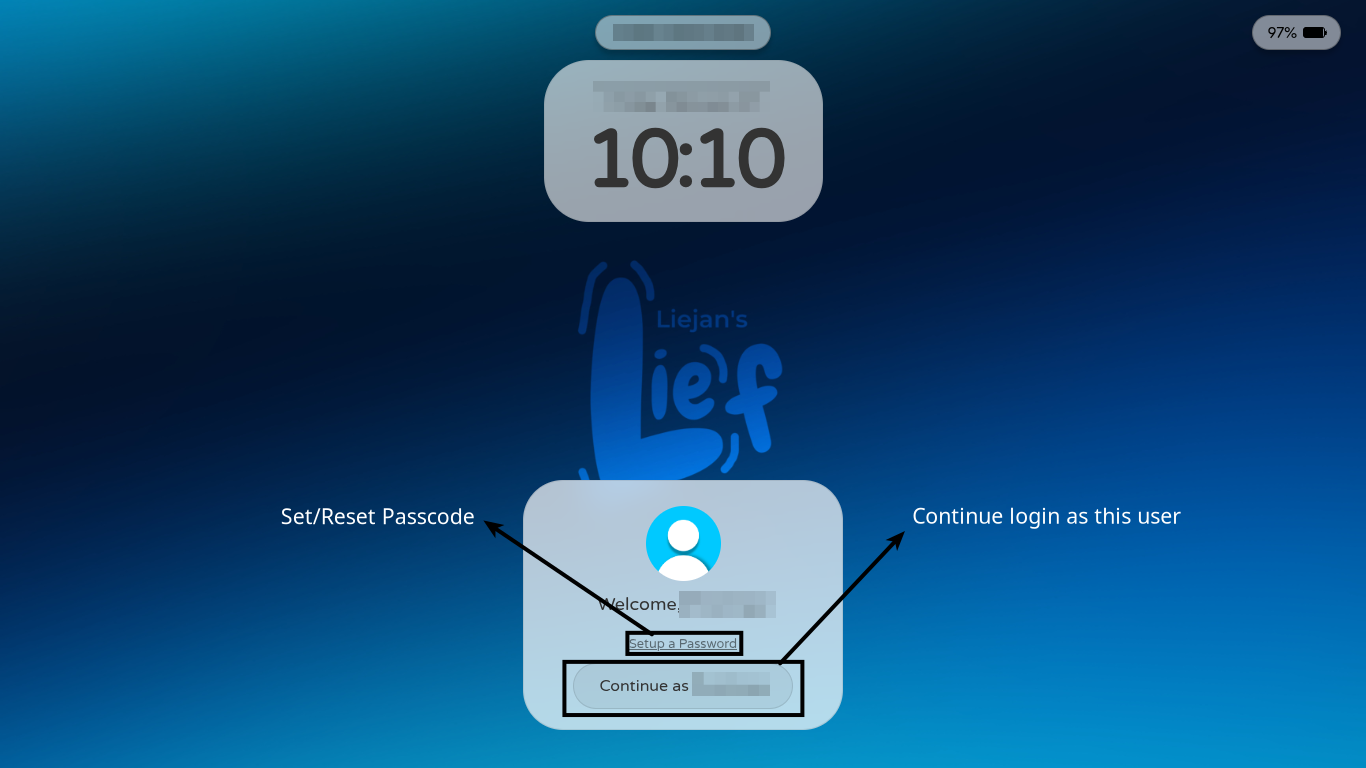
This is your lockscreen, while in the lockscreen you can add a passcode if you want.
Desktop Interface
A quick description of overall user interface of liefOS.
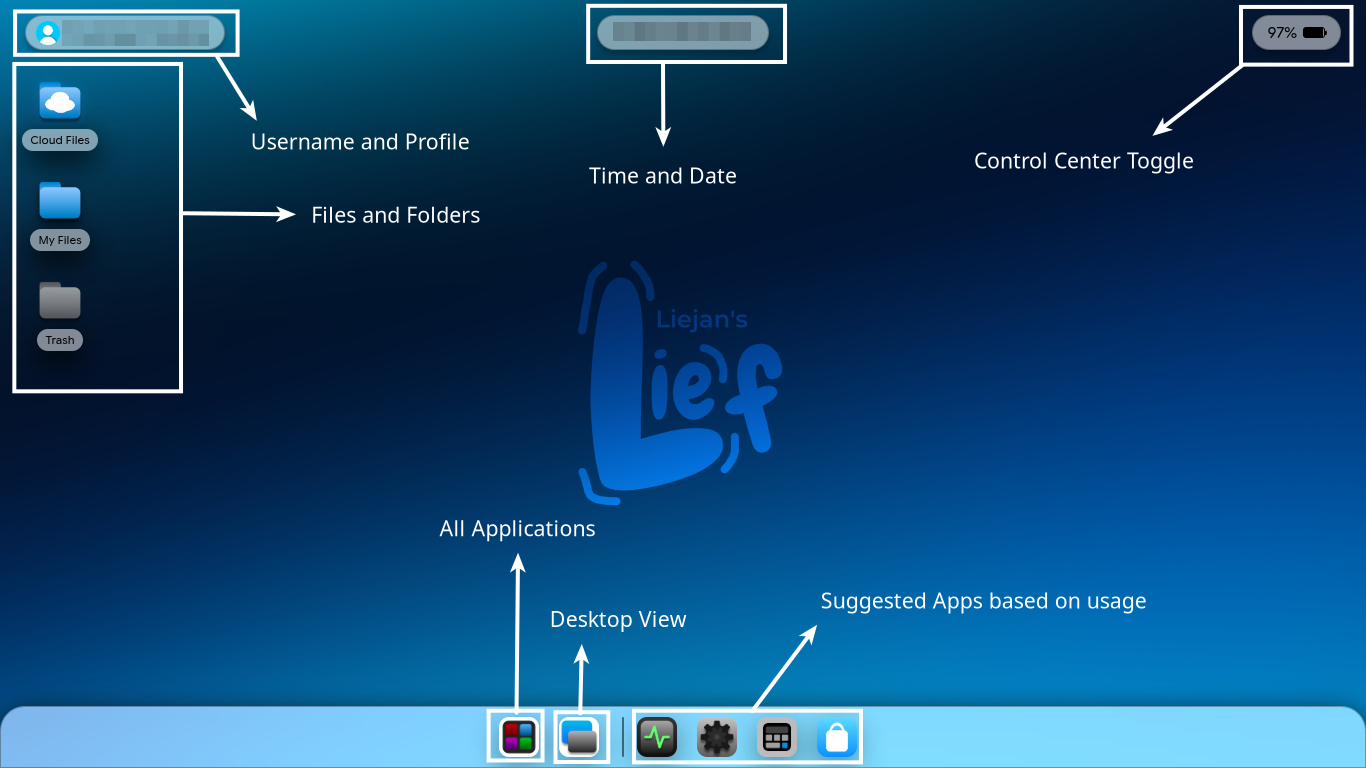
The top area has 3 pills; User Information on the left, Time & Date on the center and Control Center Toggle & Battery Information on the right.
The bottom shelf/panel or "Suggestions Bar", Is where the "All apps", "Desktop View", and applications suggested to you based on your usage. Your active and minimized application windows will also be in this shelf/panel.
Anywhere in the available space where the top area and bottom shelf does not occupy is your desktop. You can move your files and folders freely without being limited to a grid.
Application Launcher Grid
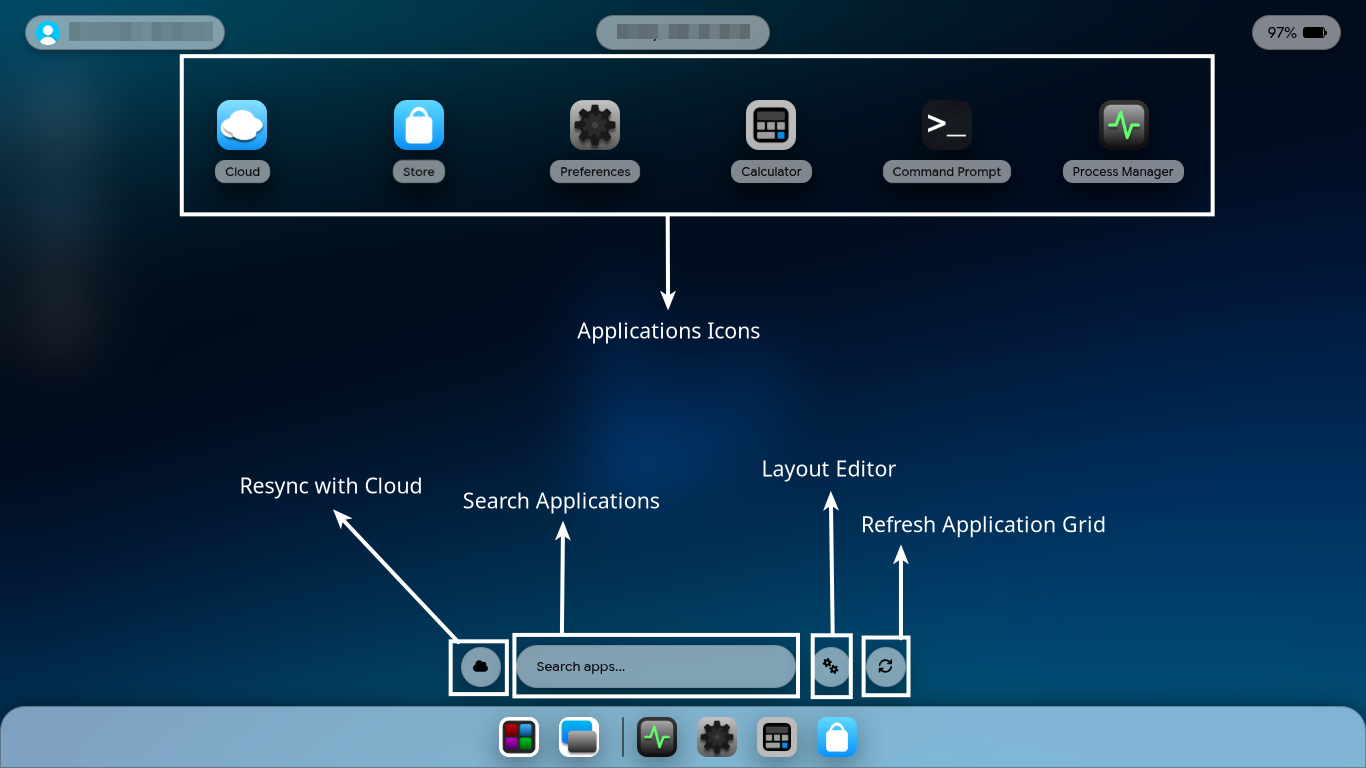
Access all your applications here.
You can also resync from cloud, search applications, refresh applications grid, and edit the application's order in the grid.
Control Center
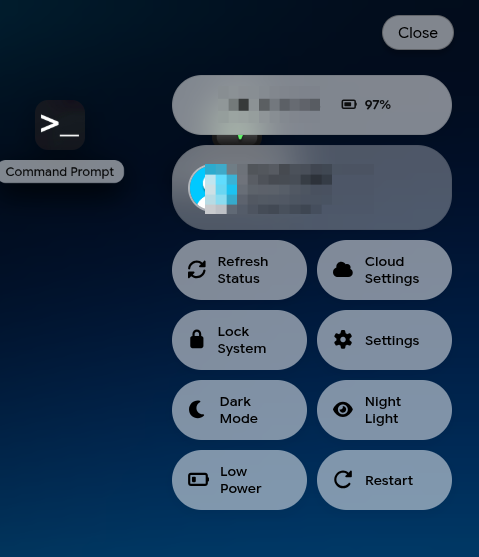
The control center, This is where you can access settings quickly such as "Dark Mode", "Night Light" and other quick toggles. You can also see your uptime and liefOS Cloud Account quota & usage which can be refreshed by pressing the "Refresh Status" button in the Control Center.
Any questions?
You might wanna check out the "Common Questions" document.
How liefOS works internally
Know how liefOS works behind the scenes.
Different types of environment and booting
When starting the client, pressing a key while the client is still loading; will interrupt the auto-boot countdown, therefore letting users choose between the default (Depending on device, either SystemX2 or MobileEnvironment) or Internal.
Important Note: MobileEnvironment is not the same as SystemX2. It is a completely separate environment made specifically for mobile users, allowing them to manage their liefOS Cloud Account.When booting to default, it will first check for the device type. If it's a mobile device; it will continue to MobileEnvironment. Otherwise, it will boot to SystemX2 which is specifically made only for Desktop/PC devices.
Internal (shell) environment on the other hand; is a separate text-only interface that's responsible for starting SystemX2 or MobileEnvironment, other than just starting graphical environments; it also has commands that can be used to interact with liefOS outside of any graphical interface.
liefOS Cloud Account
Know how liefOS Cloud Account Quota-based usage mechanisms works
liefOS Cloud follows a "quota-based" mechanism where every user has a usage limit that eventually gets reset.
| Operation Type | Limit / Detail |
|---|---|
| Read Operations | 500 Allowed |
| Write Operations | 100 Allowed |
| Reset Cycle | Every 12 hours |
liefOS counts operations as Read/Write. Fetching information from your account such as syncing your applications, viewing your cloud files, fetching account information (user name and quota), and viewing the store, counts as 1 (one) Read*.
Uploading a file to the cloud folder and installing an application counts as 1 (one) Write*.
Every operation request goes through liefOS SecureOperation*, which validates the request from the user and verifies everything before execution.
When the quota is exceeded, further operations will be ignored; the user will not be able to fetch new information or write new data to the account. The quota resets every 12 hours, depending on the last operation. Rapid writing will be ignored when operations are on cooldown.